
Cubit - Integrating open and private data sources into Species Occurrence Cubes



Cubit is an interactive workflow for generating species occurrence cubes. It provides a graphical interface that allows users to aggregate biodiversity occurrence records into standardized spatial, temporal and taxonomic units without requiring programming experience.
Occurrence cubes are analysis-ready biodiversity datasets in which occurrence records are aggregated along one or more dimensions, typically space, time and taxonomy. Compared to raw occurrence records, cubes are considerably more lightweight, easier to manipulate and directly compatible with the workflows developed within the B-Cubed project.
Cubit has two core functions:
- create occurrence cubes from user datasets;
- merge occurrence cubes originating from different sources (e.g. GBIF and local datasets).
The application is distributed both as a web application, available at https://bio-shiny.ua.pt/Cubit/ and as a locally installable version. The local version is intended for large datasets and processes input files in chunks to reduce memory usage.
Input data
Section titled “Input data”Occurrence data
Section titled “Occurrence data”Cubit accepts biodiversity occurrence datasets separated by comma, semicolon, or tabs. The web version only accepts files with csv or tsv extensions as input data.
Each row should represent one occurrence.
Although Cubit is flexible regarding column names, the dataset should contain at least:
| Information | Required |
|---|---|
| Longitude or Y-coordinate | Yes |
| Latitude or X-coordinate | Yes |
| Coordinate uncertainty | Recommended |
| Aggregation variables | Yes |
Typical aggregation variables include
- species
- year
- country
- dataset
- sampling protocol
but users can aggregate on any variables they wish.
Coordinate uncertainty is optional but highly recommended because it is used during the probabilistic allocation of occurrences to grid cells. If no coordinate uncertainty is present in the dataset a column will be created with the default value for coordinate uncertainty
Spatial grids
Section titled “Spatial grids”Cubit requires a spatial grid describing the cells that will define the spatial dimension of the cube.
Users may either
- upload a custom grid (.gpkg format), or
- choose one of the predefined grids included in the application:
| system | cell_size | example_code |
|---|---|---|
| EEA reference grid | 1x1 km | 1kmE4731N2620 |
| EEA reference grid | 10x10 km | 10kmE473N262 |
| EEA reference grid | 100x100 km | 100kmE47N26 |
Custom grids require a column named CellCode. This column should contain the grid cells that will appear in the final cube.
Creating an occurrence cube
Section titled “Creating an occurrence cube”Step 1 — Upload data
Section titled “Step 1 — Upload data”Open Cubit and navigate to the Input Data panel.
Upload
- the occurrence file;
- optionally, a custom grid.
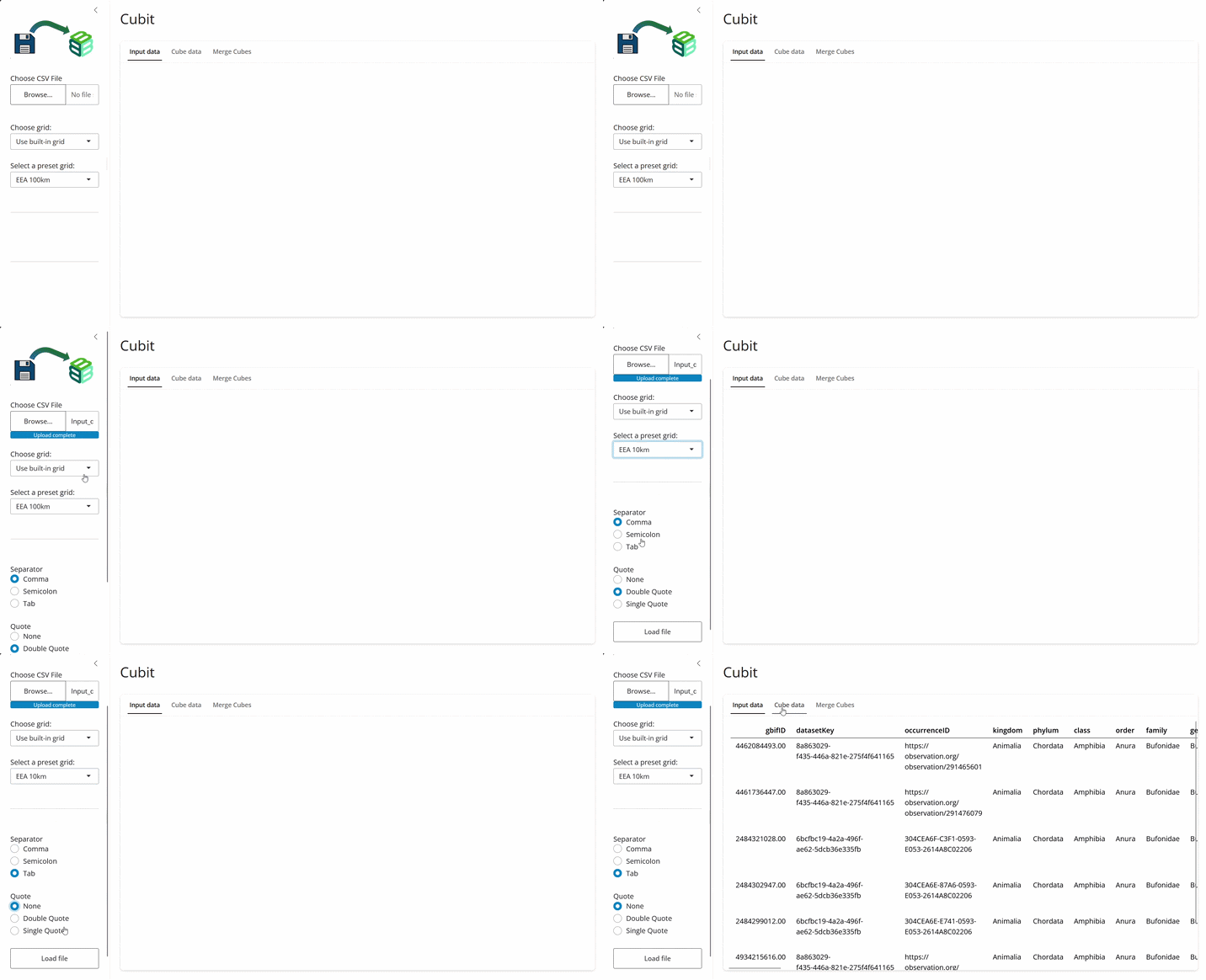
Select the correct separator (comma, semicolon or tab) and click Load file.
A preview of the first rows will appear, allowing verification that the dataset has been imported correctly.
Step 2 — Configure the cube
Section titled “Step 2 — Configure the cube”Navigate to the Cube Data panel.
Here you must specify
- aggregation columns;
- longitude/Y-coordinate column;
- latitude/X-coordinate column;
- coordinate uncertainty column.
Cubit automatically attempts to identify these columns using common names such as
- Longitude
- Latitude
- coordinateUncertainty
but these selections can always be changed manually.
Step 3 — Configure uncertainty
Section titled “Step 3 — Configure uncertainty”If coordinate uncertainty is missing for some records, Cubit allows assigning default uncertainty values.
Different defaults may be defined for different time periods when appropriate.
This step ensures that all records can be allocated to grid cells using the random allocation algorithm described in Oldoni et al. (2020).
Step 4 — Set the random seed
Section titled “Step 4 — Set the random seed”The grid allocation algorithm uses pseudo-random numbers.
Providing a random seed guarantees that the cube can be reproduced.
Step 5 — Generate the cube
Section titled “Step 5 — Generate the cube”Click Create Cube.
Cubit will
- assign occurrences to grid cells;
- aggregate occurrences;
- display the occurrence cube (in the web version).
The resulting cube can be downloaded from the web version for further analyses. In the local version you have to provide a name of a file in the corresponding field. Then the file will be created in the same folder as the input file.
Merging occurrence cubes
Section titled “Merging occurrence cubes”Cubit can merge cubes produced from different sources.
Examples include
- local monitoring programmes;
- GBIF occurrence cubes;
- institutional databases;
- citizen science projects.
Step 1 - Upload a new cube
Section titled “Step 1 - Upload a new cube”This will be merged with the one you just created. Alternatively, in the local version you need to upload both cubes;
Step 2 - map equivalent columns between datasets
Section titled “Step 2 - map equivalent columns between datasets”Column mapping makes it possible to merge cubes even when equivalent variables have different names. Note that coordinate uncertainty and occurrence counts columns need to be specified in their respective fields, since they will be processed differently from other dimensions in the cubes. Other variables can be added through Add mapping.
For example:
| Cube A | Cube B |
|---|---|
| species | scientificName |
| year | eventYear |
| gridID | cell |
Note: cubes can only be merged if they share the same spatial grid (with same format of cellcodes e.g. 100kmE47N26).
Step 3 - Click the “Merge Cubes” button.
Section titled “Step 3 - Click the “Merge Cubes” button.”When you are sure that the merged cube is properly configured, you can click the Merge Cubes button present below the column mapping.
Example workflow
Section titled “Example workflow”Suppose we have a CSV file containing observations collected during a regional monitoring programme.
The dataset contains
- speciesKey;
- decimalLongitude;
- decimalLatitude;
- year (of observation);
- coordinateUncertaintyInMeters.
among other variables.
Upload
Section titled “Upload”We upload the file, select comma as separator, select No quote (this file does not contain quoted strings) and click Load file.
Configure
Section titled “Configure”Now we want to create a cube from this data that contains the following information:
- species
- year
- countryCode
- grid cell
Grid cell will be based on the grid and coordinates so it does not need to be present in the original dataset. The other three variables are the ones the data will be aggregated by.
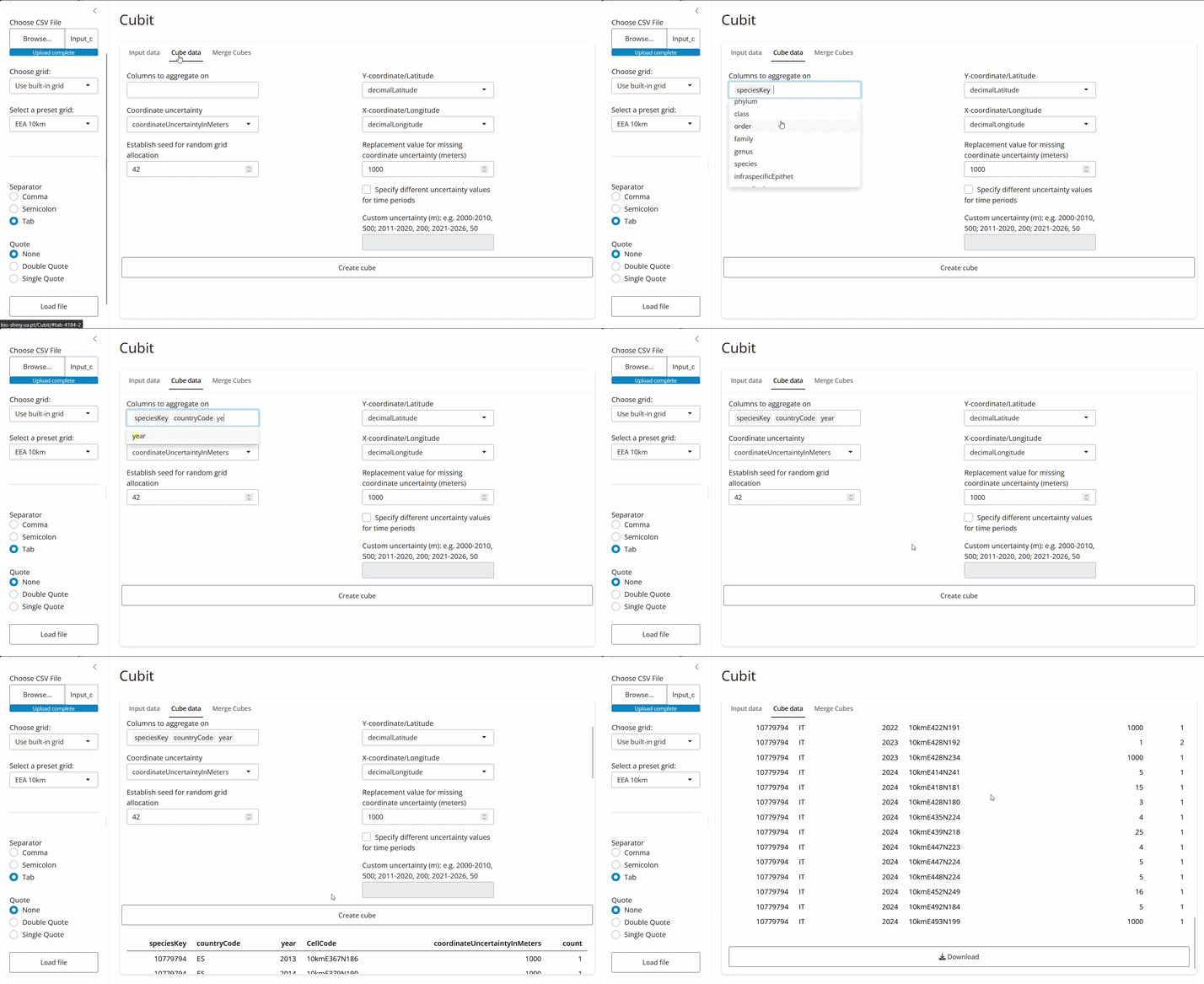
The cube can now be downloaded at the bottom of the page.
Merge with another cube
Section titled “Merge with another cube”Finally, we want to merge the cube we just created with another cube. The latter must have been created using the same grid as the former and, consequently, must have the same cell code format
We upload the second cube into the Merge Cubes panel. We then map equivalent variables (in this case they have the same column names but that is not necessary) Coordinate uncertainty and occurrence counts must be mapped as well but are treated differently, so they must be mapped in the corresponding fields. Below we can map the rest of the columns of the two cubes that we want the final merged cube to have. If there’s additional data in one of the cubes that we don’t want to keep in the final cube, we do not need to map it. Here, we want the final cube to have all the columns of both cubes (speciesKey, countryCode, year, CellCode, coordinateUncertaintyInMeters, count).
After configuring the mapping, we execute the merge.
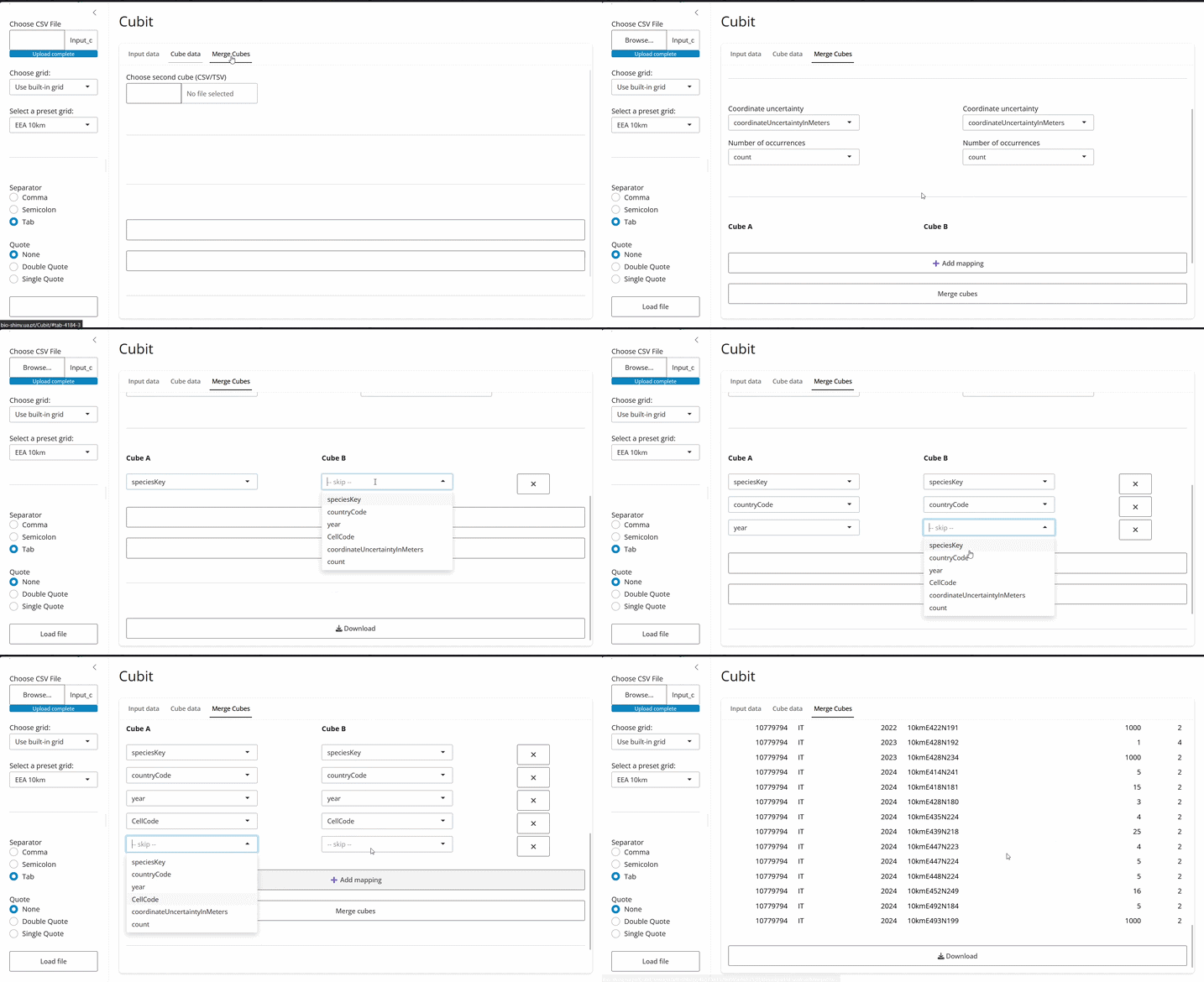
The resulting cube combines observations from both cubes into a single standardized dataset that can be directly used by downstream B-Cubed workflows.
Best practices
Section titled “Best practices”- Always inspect the imported data preview.
- Use coordinate uncertainty whenever available.
- Set a random seed to ensure reproducibility.
- Use the local version when processing datasets containing millions of records.
- Preserve the original raw dataset and treat Cubit outputs as derived products.
Further applications
Section titled “Further applications”Occurrence cubes generated with Cubit can be used for
- biodiversity indicators;
- species distribution modelling;
- sampling completeness analyses;
- assessment of spatial and temporal sampling bias;
- integration with other B-Cubed analytical workflows;
- biodiversity monitoring and reporting.
Using the local version
Section titled “Using the local version”The local version is similar to the web app. However, some differences exist. First, you select the input file in the input data panel (instead of the sidebar). Then, in the configuration panel, you need to define a file name for the output cube file, which will be created with this name in the same directory as the input file (so there’s no need to download the cube as well). Finally, to merge cubes you need to upload both cubes, even if you just created one in the same session. You also need to define a file name for the output merged cube, which, again, will be created with this name in the same directory as the input file and you don’t need to download.
To use the local version, you need to download the repository from Github, either by cloning the repository or downloading as a zip file and then extracting the files. Then you need to download the portable version of R for Windows or for MacOS. Choose the version that fits your operating system. Place it in your local repository (the folder with the app you downloaded from GitHub) and extract its contents.
To use the app, you can click on Cubit.bat. A terminal will appear and after a while a link will appear. Ctrl + click on that link or copy that link to your browser to use Cubit. You can also try to execute this file as admin and it should open immediately in the browser (mind you that this does not always work).
Alternatively, you can download the repository, install the required libraries in your version of R and run the app through it. This way, you do not need to install the portable versions of R (but Cubit.bat, the executable file that starts the app, won’t work in this case).